This guide walks you through the registration and setup of your GetResponse account.
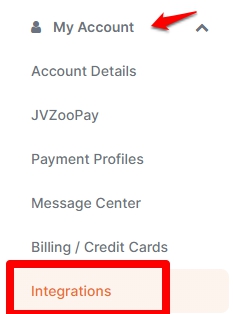
- On the main dashboard, click My Account and select Integrations.
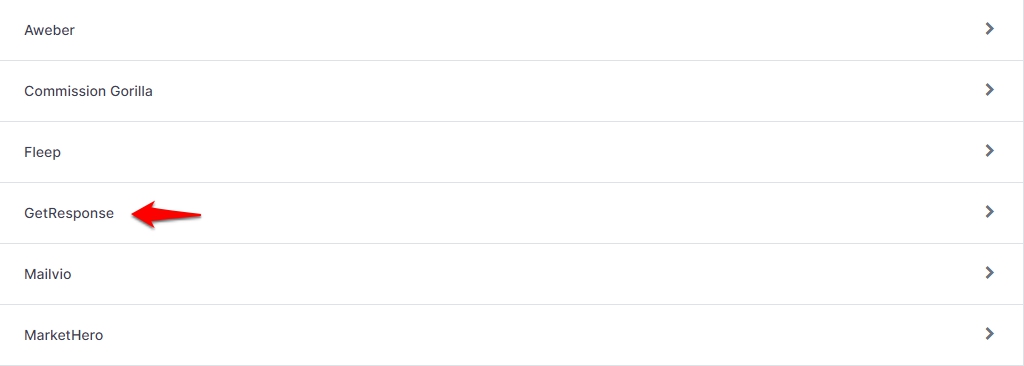
- Scroll through the options and select GetResponse.
- If you don't have a GetResponse account yet and wish to create one, click here more info.

- Next steps will take you to another page so you can register for a 30-Day Trial with GetResponse. Fill out your email, name, and create a password to sign up.

- Verify your email address by logging into the email you provided at registration. The email header will read Please activate your GetResponse Account.
- Open the email and click on the link Activate Your Account. The link will allow you to sign into your new GetResponse account. Verify your phone number and complete any requirements that GetResponse may request.
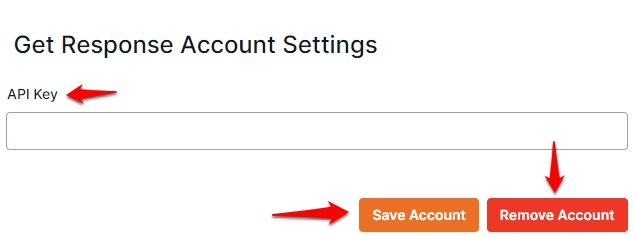
- If you have already have an existing account, skip steps 3 -6 and proceed to enter your API key. Your API Key was emailed to you upon the creation of your GetResponse account. Please take note that the API Key only works if you are still under trial or have paid for your account.
- If you can’t find the email, you can find it by logging into your GetResponse Account. Once you are logged in, go to My Account then click Use GetResponse API Key and copy your API Key.
- Once done entering the API key, click Save Account.
- To remove your GetResponse account, click Remove Account and enter a new API key if you are replacing the account with a new one.